Percentage Width/Height using Constraint Layout
By Wajahat Karim • 27.Apr.2018
UPDATE: I've started a new articlw series on ConstraintLayout to discuss tips and tricks regularly. Here's the first article about it.
{{% linkpreview title="📚Learning ConstraintLayout — 🚀Live Templates for Rescue 🚒" subtitle="Save time and improve productivity by using Live Templates for ConstraintLayout. With more than 2.5 billion active android devices today, it has become a challenging task to create a fully responsive user interface (UI) for Android developers. Each device comes with different screen sizes, density, aspect ratio etc. But everyone wants to their apps to look exactly same on all devices." link="https://wajahatkarim.com/2019/08/learning-constraintlayout--live-templates-for-rescue-/" thumbnail="https://cdn-images-1.medium.com/max/2036/1*4VH9S9wdRYSgHr_kA4g6NA.jpeg" %}}

Constraint Layout 1.1 was recently released as stable and there’s a lot to love. A complete overhaul of optimization makes most layouts run even faster than before and new features like barriers and groups make real-world designs simple! You can add it using this line in your android projects:
implementation 'com.android.support.constraint:constraint-layout:1.1.0'
There has been lots of new features in version 1.1, but we will talk about the percentage feature here. In Constraint Layout 1.0 making a view take up a percentage of the screen required making two guidelines. In Constraint Layout 1.1 it's been made simpler by allowing you to easily constrain any view to a percentage width or height.
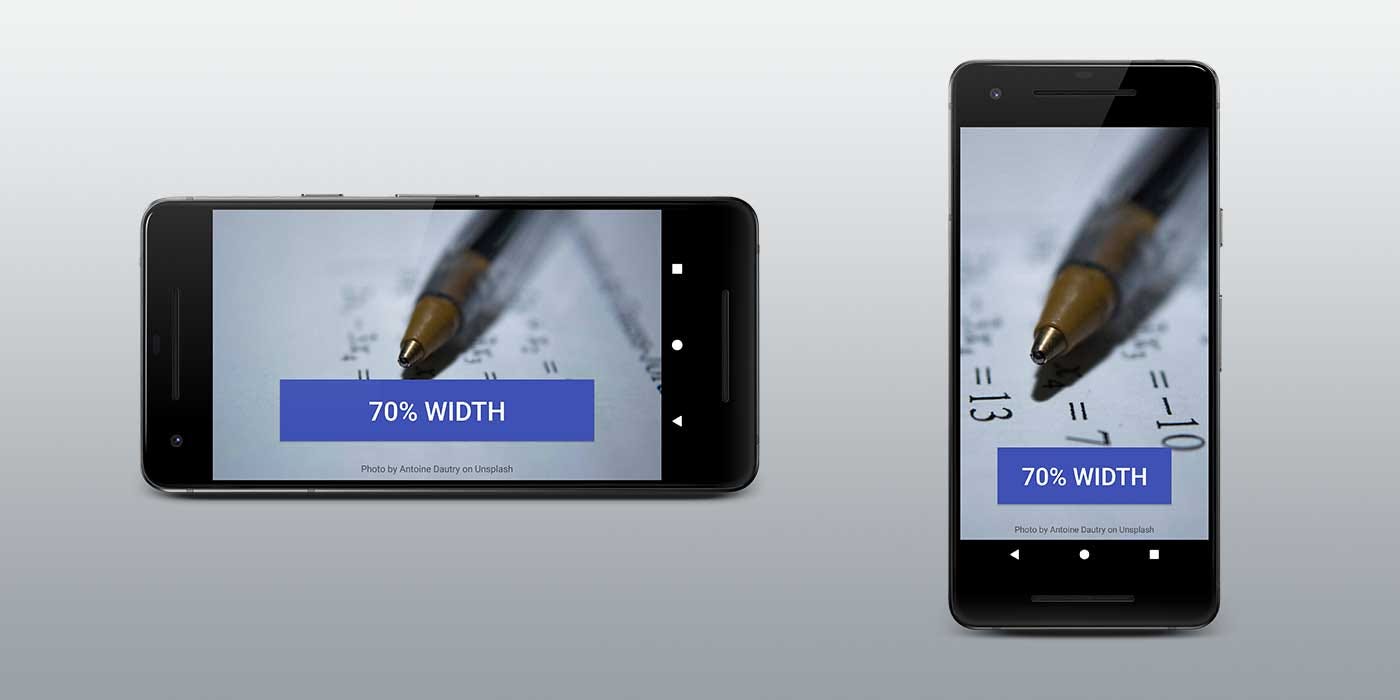
Isn't this fantastic? All views support layout_constraintWidth_percent and layout_constraintHeight_percent attributes. These will cause the constraint to be fixed at a percentage of the available space. So making a Button or a TextView expand to fill a percent of the screen can be done with a few lines of XML.
For example, if you want to set the width of the button to 70% of screen, you can do it like this:
<Button
    android:layout_width="0dp"
    android:layout_height="wrap_content"
    android:layout_constraintWidth_percent="0.7" />
Please note that you will have to put the dimension should be used as percentage to 0dp as we have specified android:layout_width to 0dp above.
Similarly, if you want to set the height of the button to 20% of screen, you can do it like this:
<Button
    android:layout_width="wrap_content"
    android:layout_height="0dp"
    android:layout_constraintWidth_percent="0.2" />
See! we have specified android:layout_height to 0dp this time as we want button to use height as percentage.